

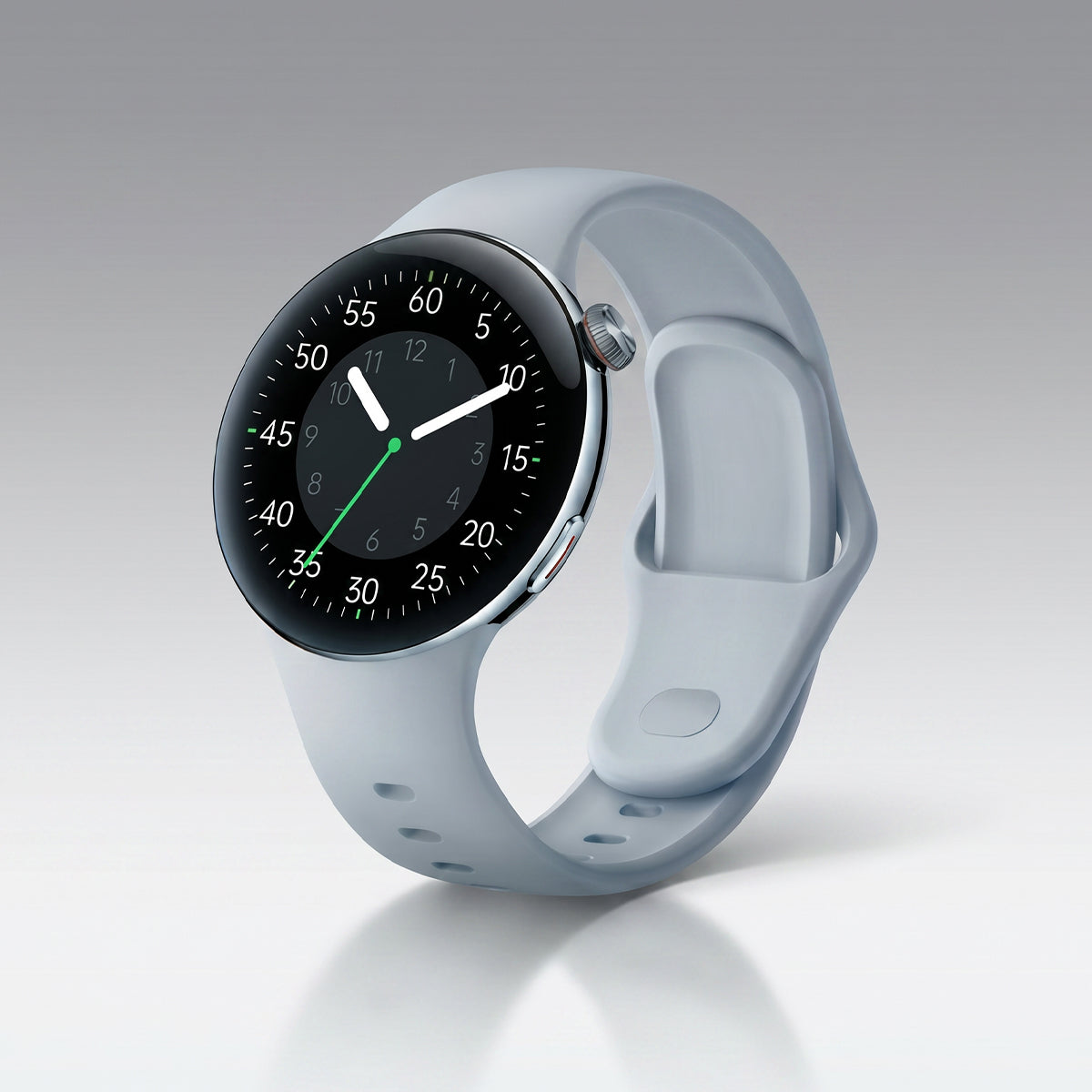





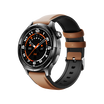


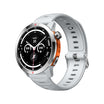


You unbox it. It’s shiny. It’s charged. And now it’s sitting on your wrist – blinking at you like a tiny alien.
Don’t panic. The first two days are the steepest part of the curve. But once you nail these three basics, you’ll wonder how you ever lived without it.
Hour 1: Pairing (aka the “handshake”)
Download the companion app (search your watch brand in the App Store or Google Play). Open it, tap “Add Device,” and when your watch shows up, confirm the pairing code. That’s it – you’re connected.
Pro tip: Keep your phone’s Bluetooth on and Wi‑Fi handy. If it fails once, restart both devices and try again. Happens to everyone.
Day 1: Change That Face
Your watch comes with a default face – probably fine, but not you. To swap it:
-
On most watches: long‑press the screen until the face grid pops up, then swipe left/right to pick a new one.
-
Or open the app, find the “Watch Faces” section, and browse hundreds of options – analog, digital, minimalist, or packed with stats.
Pick one that shows what you actually check most (time, date, steps, heart rate). Less clutter = faster glances.
Day 2: Master the Gestures
No buttons? No problem. Most smartwatches rely on swipes and taps:
-
Swipe down – quick settings (brightness, Do Not Disturb, airplane mode)
-
Swipe up – notifications (emails, texts, app alerts)
-
Swipe left/right – widgets or shortcuts (weather, music, activity rings)
-
Double‑tap the screen – often wakes the display or opens your favourite app
-
Twist your wrist – raise to wake; a gentle flick shows the time without touching
Spend five minutes just swiping around. Muscle memory kicks in fast.
Bonus: The “Oops” Fix
-
Can’t find the app? Check your phone’s Bluetooth settings – your watch should appear there.
-
Face not changing? Make sure you’re pressing firmly enough (some require a hard press).
-
Gestures feeling laggy? Close background apps on your phone – it helps.
The bottom line
The first 48 hours are about getting comfortable, not being perfect. Pair it, personalise it, and play with the swipes. By day two, it’ll feel like it’s always been there.
Now go ahead – give that wrist a workout. 😉


Hinterlasse einen Kommentar
Alle Kommentare werden vor der Veröffentlichung geprüft.
Diese Website ist durch hCaptcha geschützt und es gelten die allgemeinen Geschäftsbedingungen und Datenschutzbestimmungen von hCaptcha.