

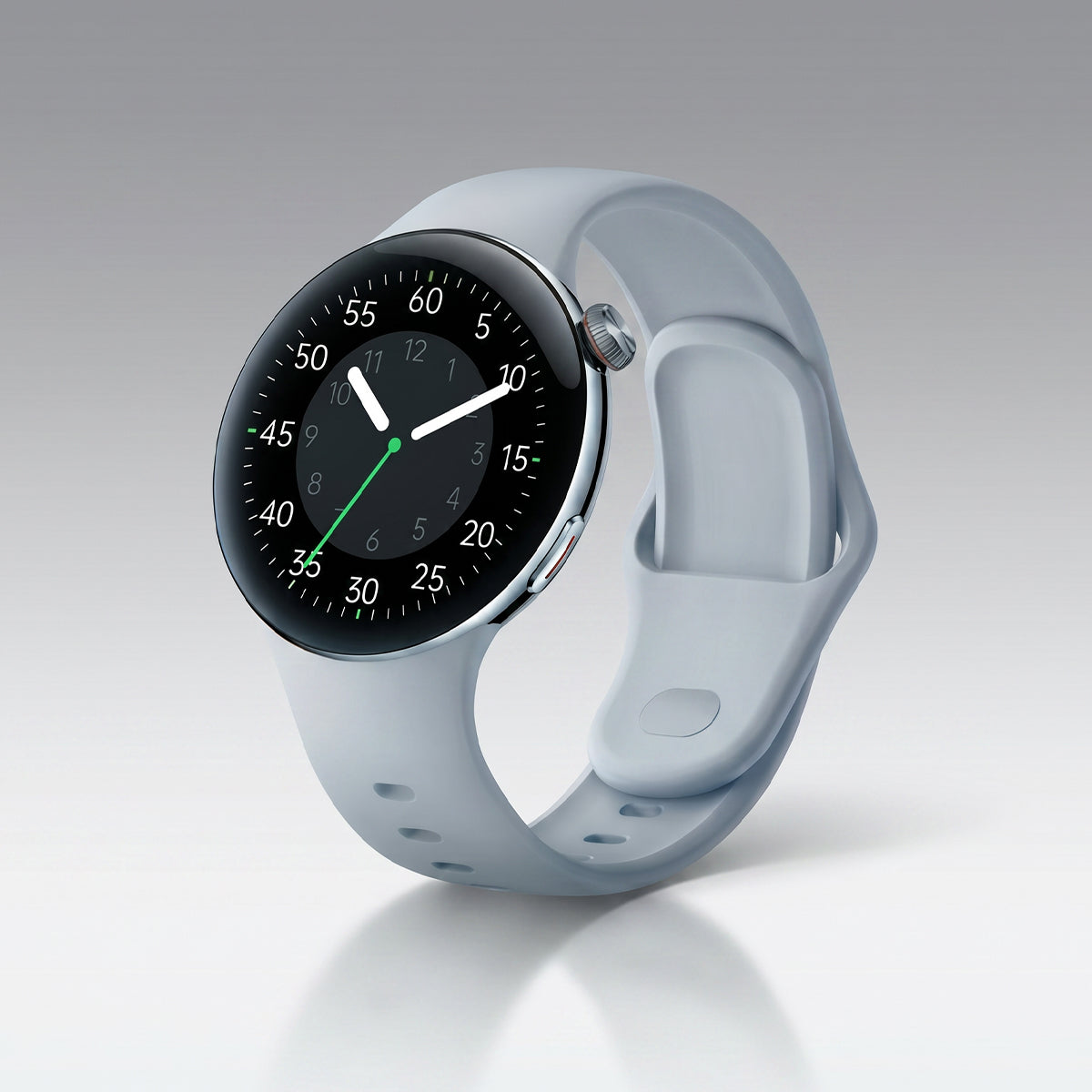








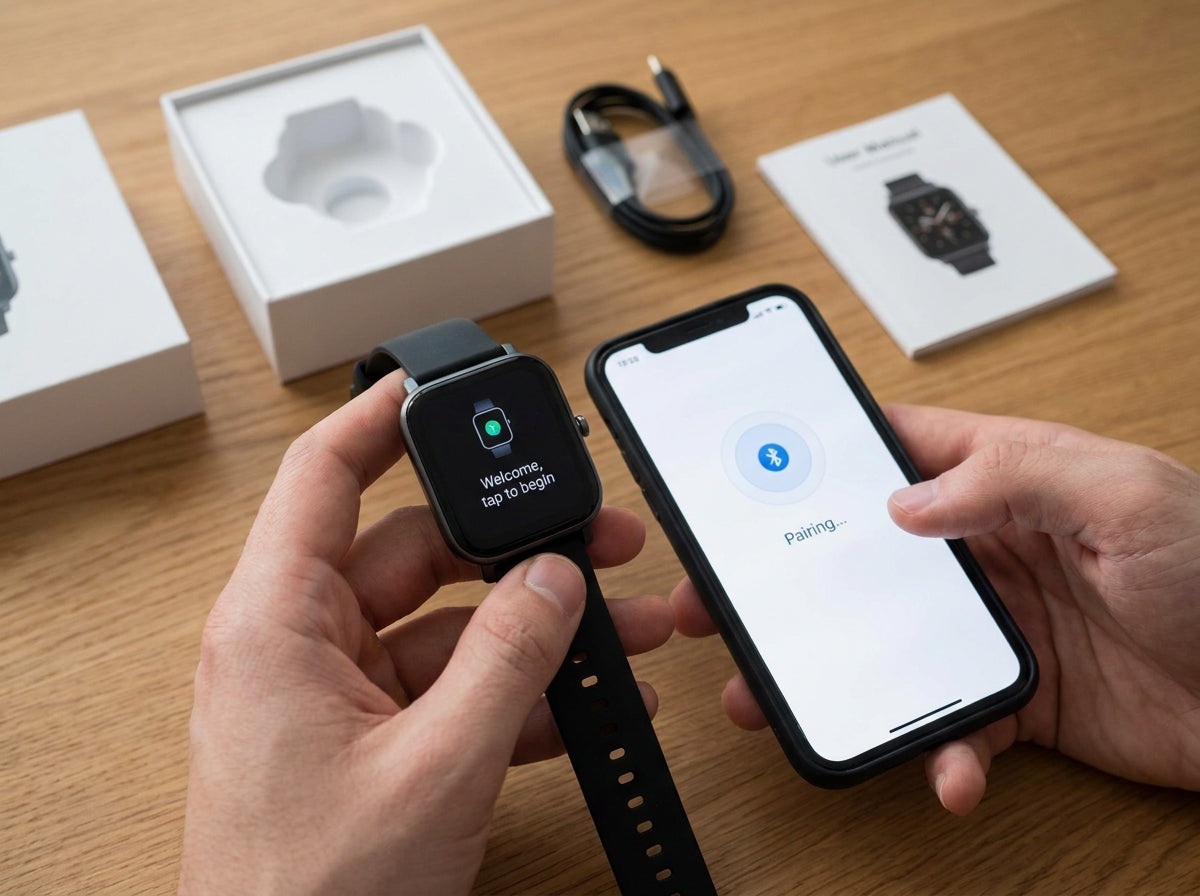
Getting a new smartwatch is exciting, but proper setup makes a huge difference in performance, accuracy, and everyday usability.
Here’s a complete step-by-step guide to help you set up your smartwatch correctly from day one.
Before You Begin
1. Fully Charge the Battery
Before first use:
- Charge the watch completely (usually 2–3 hours)
- Use the original charger whenever possible
A full initial charge helps ensure stable setup and updates.
2. Download the Companion App
Most smartwatches require a companion app on your phone.
- Search for your watch brand’s official app
- Download and install it
- Update the app to the latest version
Initial Smartwatch Setup
1. Power On the Watch
- Press and hold the power button
- Wait for the startup process to finish
2. Select Language and Region
Choose:
- Preferred language
- Time format (12-hour or 24-hour)
- Region settings
These settings affect notifications, weather, and system functions.
3. Pair the Watch with Your Phone
To connect your smartwatch:
- Enable Bluetooth on your phone
- Open the companion app
- Follow the pairing instructions
- Confirm the pairing request on both devices
4. Create Your Account
Most apps require an account for syncing and backups.
Typically you’ll need to:
- Enter your email address
- Create a password
- Complete account registration
Set Up Your Personal Profile
For more accurate health tracking, enter your personal information:
- Date of birth
- Height
- Weight
- Gender
These details help improve:
- Calorie calculations
- Heart rate analysis
- Activity tracking accuracy
Configure Notifications
Recommended Notification Settings
Decide which alerts you want on your wrist:
- Calls
- Text messages
- Calendar reminders
- Social media apps
- Email notifications
How to Customize Notifications
In the companion app:
- Open the Notifications section
- Enable or disable apps individually
- Set quiet hours or Do Not Disturb schedules
Set Up Health Monitoring
1. Heart Rate Monitoring
- Enable continuous monitoring if desired
- Set heart rate alerts for unusually high or low readings
2. Sleep Tracking
- Enable automatic sleep tracking
- Set bedtime reminders and sleep schedules
3. Activity Goals
Set realistic daily goals such as:
- Step count
- Active minutes
- Calories burned
Most watches default to around 10,000 steps per day.
Customize Your Smartwatch
1. Choose a Watch Face
- Browse available designs
- Select your favorite style
- Add useful complications like weather or heart rate
2. Customize Shortcuts
You can usually customize:
- Swipe gestures
- Shortcut buttons
- Favorite apps or widgets
3. Adjust Display Settings
Optimize visibility and battery life:
- Brightness level
- Always-On Display on/off
- Screen timeout duration
Connect Third-Party Apps
Many smartwatches support external services.
Popular Integrations
- Fitness apps like Strava or MyFitnessPal
- Music services
- Calendar syncing
- Health platforms
How to Connect Apps
In the companion app:
- Open Connected Apps
- Link your accounts
- Approve permissions
First-Week Tips
Day 1
- Wear the watch all day
- Allow sensors to calibrate
- Don’t expect perfect accuracy immediately
Week 1
- Check health data regularly
- Adjust notification preferences
- Test features you plan to use often
Week 2 and Beyond
- Tracking becomes more accurate
- Personalization improves
- Your watch adapts better to your habits
Common First-Week Questions
🔋 “Why Does the Battery Drain Quickly?”
This is normal during initial setup and syncing.
- Battery performance often improves after the first few charge cycles
- Use the watch normally during the first week
👣 “Why Are My Steps Inaccurate?”
Step tracking improves as the watch calibrates.
- Ensure proper fit on your wrist
- Continue wearing consistently
🔔 “Why Aren’t Notifications Working?”
Check the following:
- Bluetooth connection
- Notification permissions
- Do Not Disturb settings
Troubleshooting Setup Problems
If setup fails:
- Restart the smartwatch
- Restart your phone
- Reinstall the companion app
- Pair the devices again from scratch
Need Additional Help?
If problems continue:
- Read the user manual
- Visit the official support website
- Contact customer service
Conclusion
Taking a little extra time during setup can greatly improve your smartwatch experience.
Once properly configured, your smartwatch becomes a powerful daily companion for fitness, health tracking, productivity, and connectivity.
Remember: it may take a couple of weeks for the device to fully calibrate and adapt to your lifestyle.



Hinterlasse einen Kommentar
Diese Website ist durch hCaptcha geschützt und es gelten die allgemeinen Geschäftsbedingungen und Datenschutzbestimmungen von hCaptcha.