

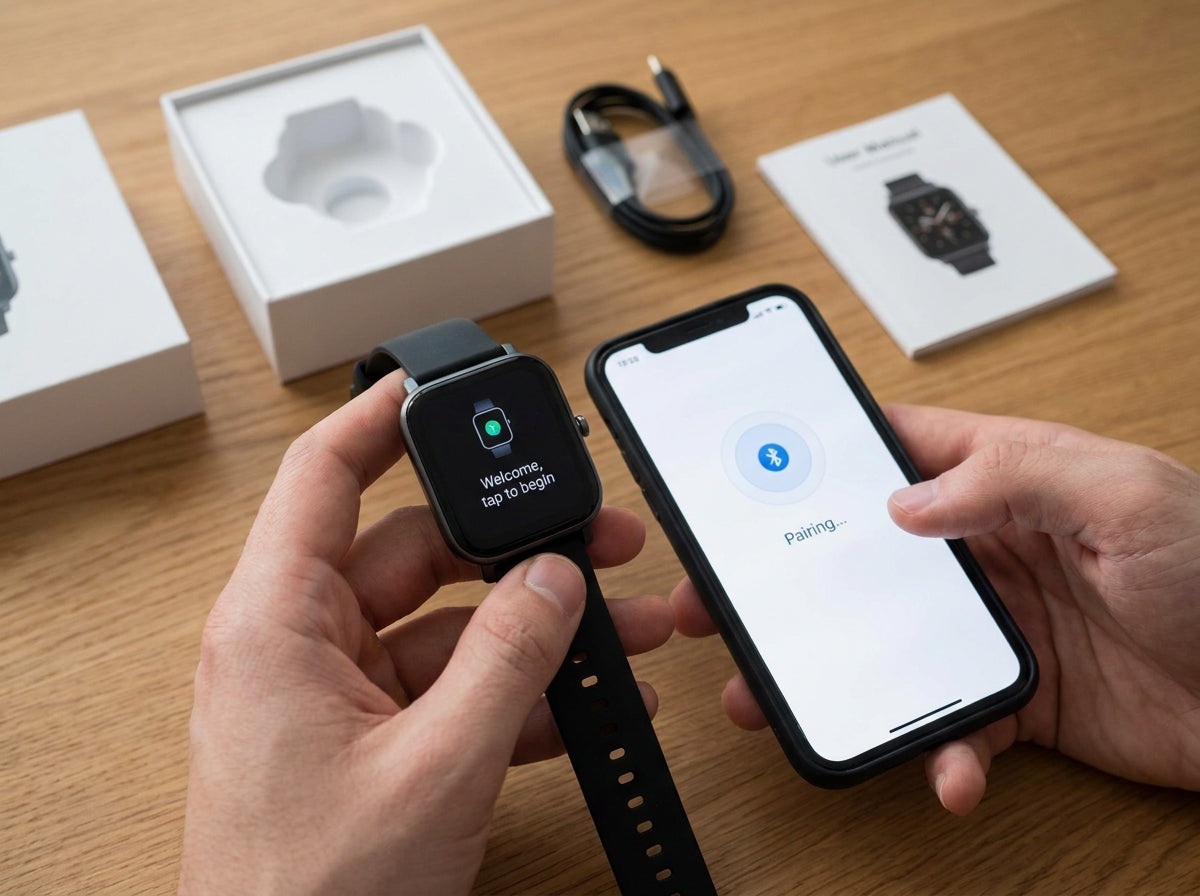
Getting a new smartwatch is exciting, but proper setup makes a huge difference in performance, accuracy, and everyday usability.
Here’s a complete step-by-step guide to help you set up your smartwatch correctly from day one.
Before You Begin
1. Fully Charge the Battery
Before first use:
- Charge the watch completely (usually 2–3 hours)
- Use the original charger whenever possible
A full initial charge helps ensure stable setup and updates.
2. Download the Companion App
Most smartwatches require a companion app on your phone.
- Search for your watch brand’s official app
- Download and install it
- Update the app to the latest version
Initial Smartwatch Setup
1. Power On the Watch
- Press and hold the power button
- Wait for the startup process to finish
2. Select Language and Region
Choose:
- Preferred language
- Time format (12-hour or 24-hour)
- Region settings
These settings affect notifications, weather, and system functions.
3. Pair the Watch with Your Phone
To connect your smartwatch:
- Enable Bluetooth on your phone
- Open the companion app
- Follow the pairing instructions
- Confirm the pairing request on both devices
4. Create Your Account
Most apps require an account for syncing and backups.
Typically you’ll need to:
- Enter your email address
- Create a password
- Complete account registration
Set Up Your Personal Profile
For more accurate health tracking, enter your personal information:
- Date of birth
- Height
- Weight
- Gender
These details help improve:
- Calorie calculations
- Heart rate analysis
- Activity tracking accuracy
Configure Notifications
Recommended Notification Settings
Decide which alerts you want on your wrist:
- Calls
- Text messages
- Calendar reminders
- Social media apps
- Email notifications
How to Customize Notifications
In the companion app:
- Open the Notifications section
- Enable or disable apps individually
- Set quiet hours or Do Not Disturb schedules
Set Up Health Monitoring
1. Heart Rate Monitoring
- Enable continuous monitoring if desired
- Set heart rate alerts for unusually high or low readings
2. Sleep Tracking
- Enable automatic sleep tracking
- Set bedtime reminders and sleep schedules
3. Activity Goals
Set realistic daily goals such as:
- Step count
- Active minutes
- Calories burned
Most watches default to around 10,000 steps per day.
Customize Your Smartwatch
1. Choose a Watch Face
- Browse available designs
- Select your favorite style
- Add useful complications like weather or heart rate
2. Customize Shortcuts
You can usually customize:
- Swipe gestures
- Shortcut buttons
- Favorite apps or widgets
3. Adjust Display Settings
Optimize visibility and battery life:
- Brightness level
- Always-On Display on/off
- Screen timeout duration
Connect Third-Party Apps
Many smartwatches support external services.
Popular Integrations
- Fitness apps like Strava or MyFitnessPal
- Music services
- Calendar syncing
- Health platforms
How to Connect Apps
In the companion app:
- Open Connected Apps
- Link your accounts
- Approve permissions
First-Week Tips
Day 1
- Wear the watch all day
- Allow sensors to calibrate
- Don’t expect perfect accuracy immediately
Week 1
- Check health data regularly
- Adjust notification preferences
- Test features you plan to use often
Week 2 and Beyond
- Tracking becomes more accurate
- Personalization improves
- Your watch adapts better to your habits
Common First-Week Questions
🔋 “Why Does the Battery Drain Quickly?”
This is normal during initial setup and syncing.
- Battery performance often improves after the first few charge cycles
- Use the watch normally during the first week
👣 “Why Are My Steps Inaccurate?”
Step tracking improves as the watch calibrates.
- Ensure proper fit on your wrist
- Continue wearing consistently
🔔 “Why Aren’t Notifications Working?”
Check the following:
- Bluetooth connection
- Notification permissions
- Do Not Disturb settings
Troubleshooting Setup Problems
If setup fails:
- Restart the smartwatch
- Restart your phone
- Reinstall the companion app
- Pair the devices again from scratch
Need Additional Help?
If problems continue:
- Read the user manual
- Visit the official support website
- Contact customer service
Conclusion
Taking a little extra time during setup can greatly improve your smartwatch experience.
Once properly configured, your smartwatch becomes a powerful daily companion for fitness, health tracking, productivity, and connectivity.
Remember: it may take a couple of weeks for the device to fully calibrate and adapt to your lifestyle.



Leave a comment
This site is protected by hCaptcha and the hCaptcha Privacy Policy and Terms of Service apply.