











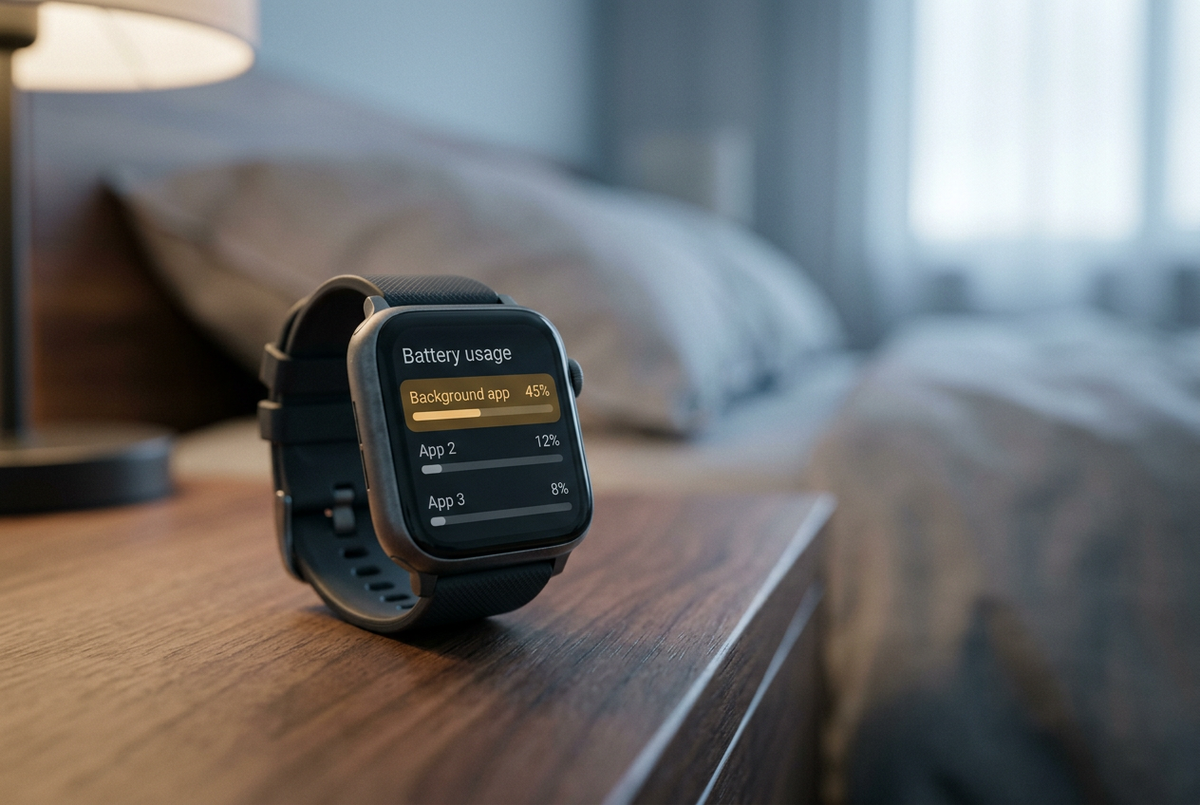
Short answer: If your watch dropped from 100% to 20% overnight while you were asleep, the culprit is almost always a background app or a system service stuck in a loop — not a dead battery. The fastest path is to check your battery usage screen for a single app consuming 30% or more, then work through a three-step escalation: restart, audit background refresh, and — as a last resort — factory reset without restoring your backup. Here's exactly how to do it.
Why This Happens Overnight
You take your watch off. You put it on the charger. You go to sleep. You wake up, put it on, and it's already at 40%.
Or worse: you charge it to 100% before bed, wear it to sleep for tracking, and wake up to a dead watch.
Both scenarios point to the same thing: something ran in the background while you weren't looking.
During the day, you're interacting with your watch. You're checking notifications, starting workouts, glancing at the time. The screen turns on and off. Apps get suspended. The system manages power actively.
At night, none of that happens. Your watch is idle. And an idle watch is the perfect environment for a runaway process to quietly chew through your battery without you noticing.
Real-world example: Pixel Watch users have reported battery life collapsing from a rated 48 hours to under 12 hours — with the same overnight drain pattern appearing on both new and old devices. That's not a hardware fault. That's software.
Step 1: Check Your Battery Usage Screen (Don't Guess)
Before you change anything, look at the data. Your watch already knows what's been eating power.
On most watches:
Settings → Battery → Battery Usage (or "Battery Usage Details")
On the companion app:
Look for "Device Health," "Battery," or "Power Management" in settings
What you're looking for:
-
One app at 30%+ of consumption → that's your culprit. It might be a third-party app you installed recently, or a system service that's misbehaving.
-
"Screen" at the top → always-on display or high brightness is the drain.
-
"Sensors" or "Health Monitoring" at the top → continuous SpO₂ or heart rate tracking is the problem.
-
Nothing obvious → proceed to Step 2.
Pro tip: Check the usage screen right after the overnight drain, before you charge. The data resets on charge on some watches, so catch it while it's fresh.
Step 2: Distinguish "Update Hangover" from "New App Problem"
The fix depends on what changed. Ask yourself two questions:
Did your watch or phone update recently?
System updates are a common cause of overnight drain. A new OS version can introduce a background service that isn't optimized yet, or reset your settings to defaults (like turning always-on display back on). Pixel Watch users have specifically traced sudden battery collapse to Google Play Services updates running wild in the background.
Did you install a new app or watch face recently?
A single badly written third-party app can drain a full day's battery in hours. Watch faces with live complications are frequent offenders — they update the screen constantly, even when you're not looking.
If the answer to either question is yes, you've probably found your culprit. If nothing changed, move to Step 3.
Step 3: The Three-Step Escalation
Work through these in order. Stop when the problem goes away.
Level 1: Restart the Watch (and the Phone)
This sounds too simple to work. It fixes a surprising number of cases.
Do this:
-
Power off the watch completely. Wait 10 seconds. Power it back on.
-
Restart your phone too — the companion app can get stuck in a sync loop that keeps the watch awake.
Why it works: A restart clears stuck processes, resets the Bluetooth stack, and kills any background service that's hung. It's the first thing to try, every time.
Then wait one full charge cycle. Battery behavior takes a day to normalize. Don't judge after two hours.
Level 2: Audit Background Refresh and Notifications
If a restart doesn't fix it, something is running that shouldn't be.
On the watch:
-
Go to Settings → Apps → Background Refresh (or "Background App Refresh")
-
Turn off background refresh for every app you don't actively use
-
Keep only the essentials: your watch face, health tracking, and maybe one or two others
On the phone (companion app):
-
Check notification settings. Every buzz lights the watch screen. If an app is pushing constant notifications, it's draining battery even when you're not looking.
-
Turn off notifications for apps you don't need on your wrist. Keep calls and messages. Kill the rest.
Also check:
-
Is always-on display on? Turn it off.
-
Is Wi-Fi enabled? Turn it off unless you need it for updates.
-
Is auto-sync running constantly? Set it to manual or once daily.
Then wait one more charge cycle. If the drain persists, move to Level 3.
Level 3: Factory Reset — But Don't Restore the Backup
This is the nuclear option, and it's the one that actually works when nothing else does.
Why "without restoring the backup" matters: If you restore from a backup, you might restore the exact app or setting that caused the problem in the first place. A clean setup eliminates that possibility.
How to do it:
-
Sync everything to your account first. Make sure your health data, workouts, and settings are backed up to the cloud.
-
Factory reset the watch through the settings menu or the companion app.
-
Set it up as a new device — do not choose "Restore from backup" during setup.
-
Reinstall apps one at a time. Use the watch for a day after each install. If the drain returns, you've found the culprit.
-
Re-pair your phone and re-enable only the notifications you actually need.
Real-world evidence: Pixel Watch users who reported the overnight drain issue found that a full reset without restoring the backup was the only fix that worked. The backup was carrying the problem forward.
When It's Not a Software Problem
Sometimes no app audit will fix it, because the battery itself is the issue.
Signs your battery has degraded:
-
It drains fast and charges fast
-
It shuts down suddenly at 15–20% instead of counting down
-
It gets noticeably warm during normal use
-
The watch is 2+ years old and has been charged daily
-
Your watch's battery health reading shows below 80% capacity
Lithium-ion batteries lose capacity with every cycle. After 500 full cycles — roughly 18 months of daily charging — most batteries are at 80% or lower. That's chemistry, not configuration.
What to do: If your watch reports battery health, check it. If it's under 80% and you've already done the reset above, it's time for a battery replacement or a new device.
The Bottom Line
An overnight battery collapse is rarely random. It's almost always a background app, a system service, or a setting that changed without you noticing.
Check the usage screen first. Then restart. Then audit background refresh. Then reset without restoring the backup.
And if the battery is simply old, stop blaming your settings. Five minutes of actual diagnosis beats an hour of turning things off at random. ⌚


Jätä kommentti
Tämä sivu on suojattu hCaptcha-tunnistuksella, ja hCaptchan tietosuojakäytäntöjä ja käyttöehtoja sovelletaan.