

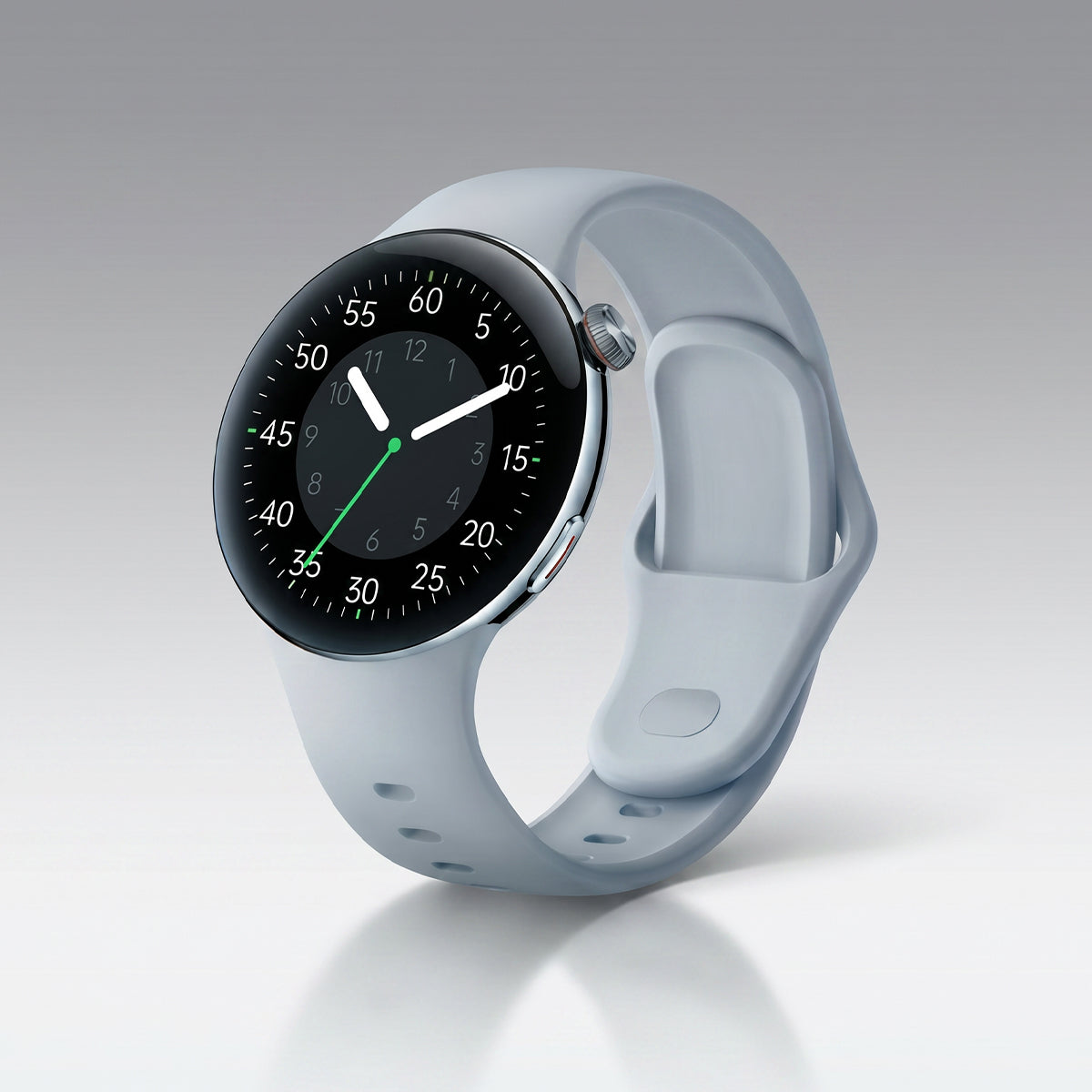










You're standing in your driveway, running shoes on, ready to go. You hit start on your watch. It says "Locating GPS…" and starts spinning.
Thirty seconds pass. A minute. You're doing calf raises in the driveway like an idiot, watching the little satellite icon flash. Still searching.
This is one of the most universal smartwatch frustrations, and it's not just impatience — a slow GPS lock means your run won't be accurately recorded from the start. Here's why it happens and what to do about it.
Why GPS Feels Slower Than It Used to
Your watch isn't slower than it used to be. It's usually one of three things:
1. Stale ephemeris data. GPS satellites constantly broadcast their location and orbit. Your watch caches this data — called the almanac or ephemeris — to lock on faster next time. If that cache is old (because you haven't used GPS in a while, or you've been indoors), your watch has to rebuild it from scratch. That can take minutes.
2. Environmental obstruction. Satellites are 12,000 miles away, broadcasting weak signals. Trees, buildings, hills, and even your own body can block them. Urban canyons — the streets between tall buildings — are the worst-case scenario.
3. Power-saving mode. Some watches limit GPS sampling or disable background scanning when battery saver is on. This saves battery but slows down the initial lock.
Tip 1: Start the Workout Mode 30–60 Seconds Before You Run
This is the simplest habit change, and it's the one that matters most.
Start your workout mode before you're ready to move. Hit the button as you're tying your laces or doing your warm-up. By the time you're ready to run, the GPS will have had 30–60 seconds to lock on. You'll see the satellite indicator go solid, and you can hit "Go" with confidence.
Most watches show a GPS signal strength icon. Wait for it to be full or solid before you start moving. Starting the activity before the lock means the first few minutes of your run will be estimated from your stride, not tracked.
Tip 2: Go to Open Sky — Away From Buildings and Trees
If you're trying to lock GPS from inside your house, in a car, or between two tall buildings, no amount of waiting will help. You need open sky.
Step outside. Walk to the end of your driveway or to the nearest open space. Hold your arm up or keep the watch facing the sky. If you're in a city, get to the widest intersection you can find.
Once you've established a lock, you can move into tree cover — the lock is usually maintained even when the signal weakens. The problem is getting the lock, not keeping it.
Tip 3: Check That Location Services and Wi‑Fi/Bluetooth Scanning Aren't Off
Your watch uses more than just satellites to lock on. It uses A‑GPS — assisted GPS — which pulls cached satellite data from Wi‑Fi networks and Bluetooth beacons to speed up the initial fix. If those scanning features are disabled by power-saving mode, GPS feels dramatically slower.
Check:
-
Location services is on (Settings → Privacy → Location)
-
Wi‑Fi and Bluetooth scanning is enabled (usually in Location → System Services)
-
Battery saver is off for your workout (or set to "unrestricted" for the watch's companion app)
On Android, "Google Location Accuracy" should be on. On iOS, "Location Services → System Services → Significant Locations" doesn't need to be on, but "Wi‑Fi Networking & Bluetooth" does.
Tip 4: Refresh Your Ephemeris Data
The cache that helps your watch lock quickly goes stale after a few days. You can refresh it in two ways:
Open the companion app and let the watch sync with your phone. This usually pushes fresh almanac data from the internet.
Connect the watch to Wi‑Fi. Many watches download updated satellite data automatically when on Wi‑Fi.
If you've been indoors for a while (especially if you've flown to a new region), your watch will take longer on the first outdoor run. Be patient. One slow lock, then it'll be fast again.
Tip 5: Restart the Watch to Clear Temporary Cache
A restart clears temporary GPS cache and resets the location service, which can sometimes get stuck after weeks of use. It takes 10 seconds.
Restart before you head out if:
-
The GPS has been slow on recent runs
-
You've traveled to a new city or country
-
The watch hasn't been restarted in weeks
Tip 6: Don't Turn On Battery Saver Before a Workout
Power‑saving modes on some watches reduce GPS sampling rate or disable background location services entirely. That extends battery life at the cost of slower locks and less accurate tracks.
If your battery is low and you're worried about running out, use a "GPS only" mode rather than battery saver. That still tracks your route accurately but drops multi‑constellation or high‑accuracy sampling.
The Bottom Line
GPS lock is a chemical process — it's your watch figuring out where it is by listening to the faintest signals in the sky. Sometimes it's fast. Sometimes it's not.
Start the workout mode early. Go outside. Make sure scanning isn't disabled. Refresh your data. Restart occasionally. Keep battery saver off.
Do those six things and you'll spend less time pacing in your driveway and more time actually running. 🛰️

コメントを書く
このサイトはhCaptchaによって保護されており、hCaptchaプライバシーポリシーおよび利用規約が適用されます。