

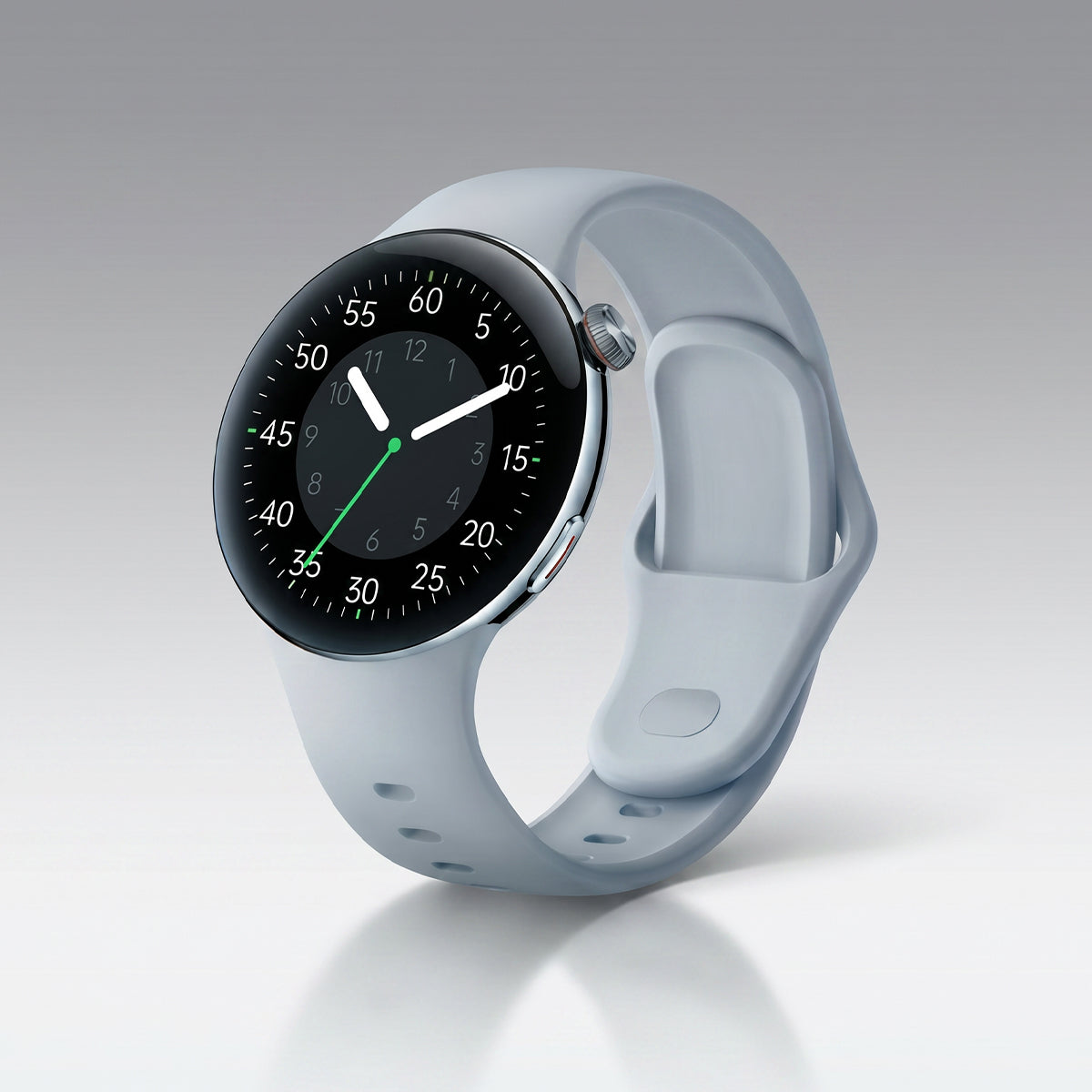






Connecting your smartwatch to your phone unlocks its full potential. This guide walks you through the pairing process, troubleshooting, and getting the most from the connection.
Understanding the Connection
What Bluetooth Does
Bluetooth wireless technology creates a connection between your watch and phone. This connection enables:
App data synchronization
Notification mirroring
Phone control features
Music control
Find my phone feature
Connection Types
Bluetooth LE (Low Energy):
Standard for smartwatches
Uses less battery
Range up to 30 feet
Works with most modern phones
BLE + LTE (Some Models):
Cellular connectivity built-in
Can work without phone nearby
Requires separate data plan
Before You Start
Check Requirements
Phone Compatibility:
iOS 11.0 or higher
Android 7.0 or higher
Check your specific model
App Requirements:
Download correct app before pairing
Check app store for latest version
Ensure phone Bluetooth is on
What You Need:
Phone with Bluetooth enabled
Stable internet for initial setup
Account created in app
Watch charged (at least 50%)
Step-by-Step Connection
For iPhone Users
Step 1: Download the App
Open App Store
Search "Aolon"
Tap Get or Install
Wait for download to complete
Open app
Step 2: Create Account
Tap Sign Up
Enter email address
Create password
Verify email if required
Complete profile setup
Step 3: Enable Bluetooth
Go to iPhone Settings
Tap Bluetooth
Toggle Bluetooth ON
Return to app
Noted: Please note that you should not connect the watch directly through the phone's Bluetooth settings.
Step 4: Start Pairing
Open Aolon app
Tap Add Device or +
Select your watch model
Wait for watch to appear
Tap to select
Step 5: Confirm Pairing
Watch displays pairing code
Verify codes match
Tap Confirm on watch
Tap Pair on phone
Step 6: Complete Setup
Allow notification access
Allow health tracking
Set up emergency contacts
Complete initial settings
For Android Users
Step 1: Download the App
Open Google Play Store
Search "Aolon"
Tap Install
Wait for download
Open app
Step 2: Enable Location
Android requires location for Bluetooth
Go to Settings
Tap Location
Enable Location services
Step 3: Enable Bluetooth
Go to Settings
Tap Bluetooth
Toggle ON
Return to app
Step 4: Create or Log In
Open app
Create account or log in
Complete profile
Step 5: Pair Your Watch
Tap Add Device
Select your model
Accept Bluetooth pairing request
Confirm on both devices
Step 6: Allow Permissions
Allow all required permissions
Enable notification access
Allow call and SMS access
Complete setup
Troubleshooting Connection Issues
Can't Find Your Watch
Steps to Try:
Make sure watch is on
Restart watch (power off then on)
Ensure watch is near phone
Check Bluetooth is enabled
Clear app cache and retry
Pairing Failed
Solutions:
Remove previous pairings
Restart both devices
Update phone and watch software
Reset watch to factory settings
Try again
Connection Keeps Dropping
Check These:
Ensure watch and phone are close
Check for interference (other devices)
Update both device software
Verify battery is sufficient
Remove other Bluetooth devices
Notifications Not Working
Fixes:
Check app has notification permission
Enable notifications in phone settings
Verify notification access in app
Check Do Not Disturb is off
Re-sync connection
Syncing Problems
What to Check:
Internet connection stable
Bluetooth working properly
App is latest version
Background refresh enabled
Watch has storage space
Optimizing Your Connection
Improve Performance
Keep Devices Close:
Stay within 30 feet for best connection
Avoid obstacles between devices
Minimize interference
Update Regularly:
Check for app updates weekly
Update phone software monthly
Keep watch firmware current
Manage Background Apps:
Allow background refresh
Don't force close pairing app
Enable auto-sync
Managing Multiple Connections
Connecting to Tablet or Laptop
Same process as phone
Log out of current device first
Pair new device separately
Switching Between Devices
Log out from one device
Log in to another
Re-establish connection
Data Syncing
What Syncs:
Activity data (steps, calories)
Heart rate measurements
Sleep data
Workout records
Settings preferences
How Often:
Automatic every few minutes
Manual sync available
Works over Bluetooth or WiFi
App Features
Notification Settings
Types to Enable:
Call notifications
SMS messages
App notifications
Calendar events
Reminders
Customization:
Choose which apps notify
Set quiet hours
Enable notification sounds
Configure quick replies
Health Data
Access Your Data:
Open app dashboard
View daily/weekly summaries
Export data for reports
Track long-term trends
App Customization
Widgets:
Add frequently used widgets
Customize home screen
Set preferred metrics
Reorder sections
Settings Sync
What Transfers:
Watch face preferences
Alert settings
Workout profiles
Goal targets
Security Features
Protecting Your Data
PIN Protection:
Set PIN on watch
Enable for payment features
Use during setup
Find My Watch:
Use last known location
Make watch ring
Track on map
Unpairing
When to Unpair:
Selling your watch
Getting new phone
Troubleshooting major issues
How to Unpair:
Go to phone Bluetooth settings
Find watch in device list
Tap Forget This Device
Confirm in watch settings
Conclusion
Connecting your smartwatch to your phone is essential for full functionality. Follow this guide to establish a reliable connection and get the most from your device.
Related Articles
How to Setup Your Aolon Smartwatch
Smartwatch Features Explained
Smartwatch Battery Life Guide

发表评论
此站点受 hCaptcha 保护,并且 hCaptcha 隐私政策和服务条款适用。