

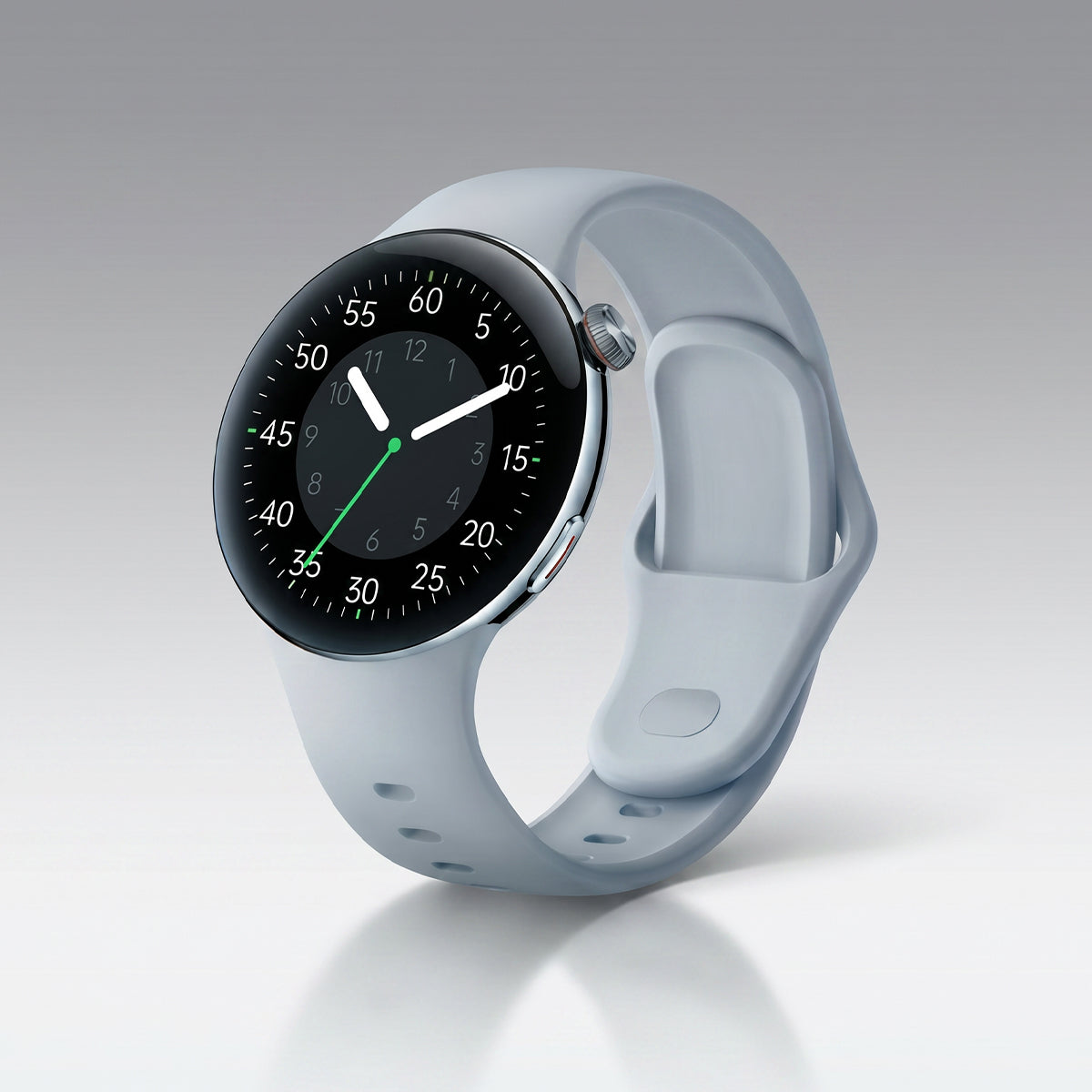









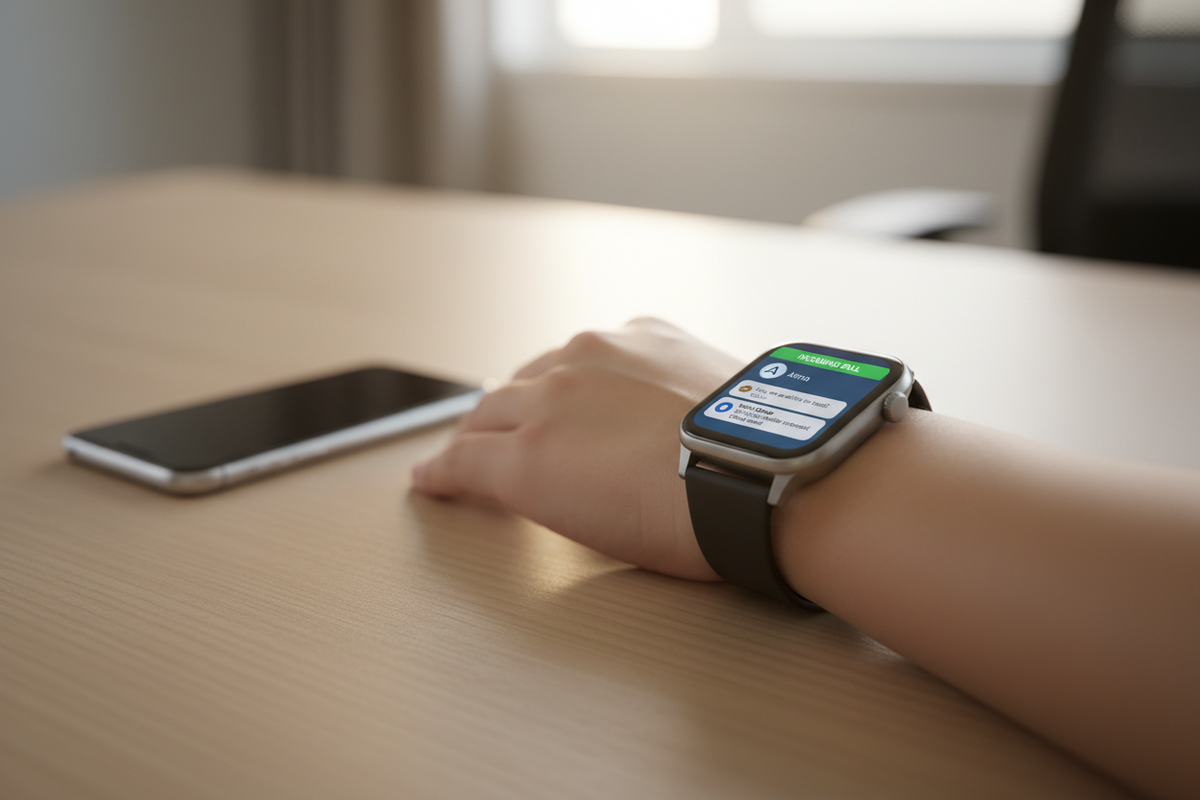
Smartwatch notifications are one of the most useful features of any wearable. When set up correctly, they keep you connected without constantly reaching for your phone. This guide walks you through how to configure and optimize notifications for a smoother daily experience.
Why Notifications Matter
A well-configured notification system helps you stay informed while reducing distractions.
Key benefits:
- Receive important alerts without checking your phone
- Make quick decisions on what’s urgent
- Reduce overall screen time
- Stay aware without being overwhelmed
Setting Up Notifications
Getting started only takes a few steps, both on your watch and in the companion app.
On Your Watch
Go to:
Settings → Notifications → Enable Notifications
From here, you can enable all notifications or choose specific apps.
In the Companion App
Using apps like Aolon Connect:
- Open the app
- Navigate to Settings → Notifications
- Select which apps can send notifications
- Adjust preferences for each app
Managing Notification Types
Different types of notifications serve different purposes. Customizing them ensures you only get what matters.
Common notification types include:
- Calls: Answer or decline directly from your wrist
- Text Messages: Preview messages and send quick replies
- Calendar Alerts: Stay updated on meetings and events
- Alarms: Wake-up or reminder alerts
- Reminders: Tasks and to-do notifications
- Weather Updates: Real-time weather alerts
Per-App Configuration
To fine-tune notifications:
- Go to Settings → Notifications → App Settings
- Select individual apps
- Enable or disable notifications
- Customize sound and vibration settings
Customizing Notification Alerts
You can tailor how notifications appear based on your preferences:
- Turn Off: Disable completely
- Sound Only: Audible alerts without vibration
- Vibration Only: Silent but noticeable
- Sound & Vibration: Maximum alert visibility
- Screen Only: Visual alerts without sound
Using Do Not Disturb (DND)
To avoid interruptions during important moments or sleep:
-
Schedule DND:
Settings → Notifications → Do Not Disturb → Set schedule -
Quick Toggle:
Enable instantly with a button or shortcut -
Auto Sleep Mode:
Sync DND with your sleep schedule for uninterrupted rest
Quick Replies
Smartwatches often support short, predefined responses for messages.
How to Set Up
- Go to Settings → Quick Replies
- Add or edit custom responses
- Use built-in templates or create your own
Limitations
- Character limits apply
- Only basic replies are supported
- May not work with all messaging apps
Troubleshooting Common Issues
Not Receiving Notifications?
Check the following:
- Bluetooth connection is active
- Notifications are enabled on your phone
- App permissions are granted
- Do Not Disturb is turned off
- Battery saver mode isn’t restricting alerts
Getting Too Many Notifications?
Try this:
- Disable non-essential apps
- Adjust notification priorities
- Use filters to reduce clutter
No Vibration?
Make sure:
- Vibration is enabled in settings
- Battery optimization isn’t limiting haptics
- Haptic feedback is turned on
Final Thoughts
Smartwatch notifications are powerful when used correctly. The goal isn’t to receive more alerts — it’s to receive the right ones. By customizing your settings, you can stay connected, focused, and in control without feeling overwhelmed.



发表评论
所有评论在发布前都会经过审核。
此站点受 hCaptcha 保护,并且 hCaptcha 隐私政策和服务条款适用。