

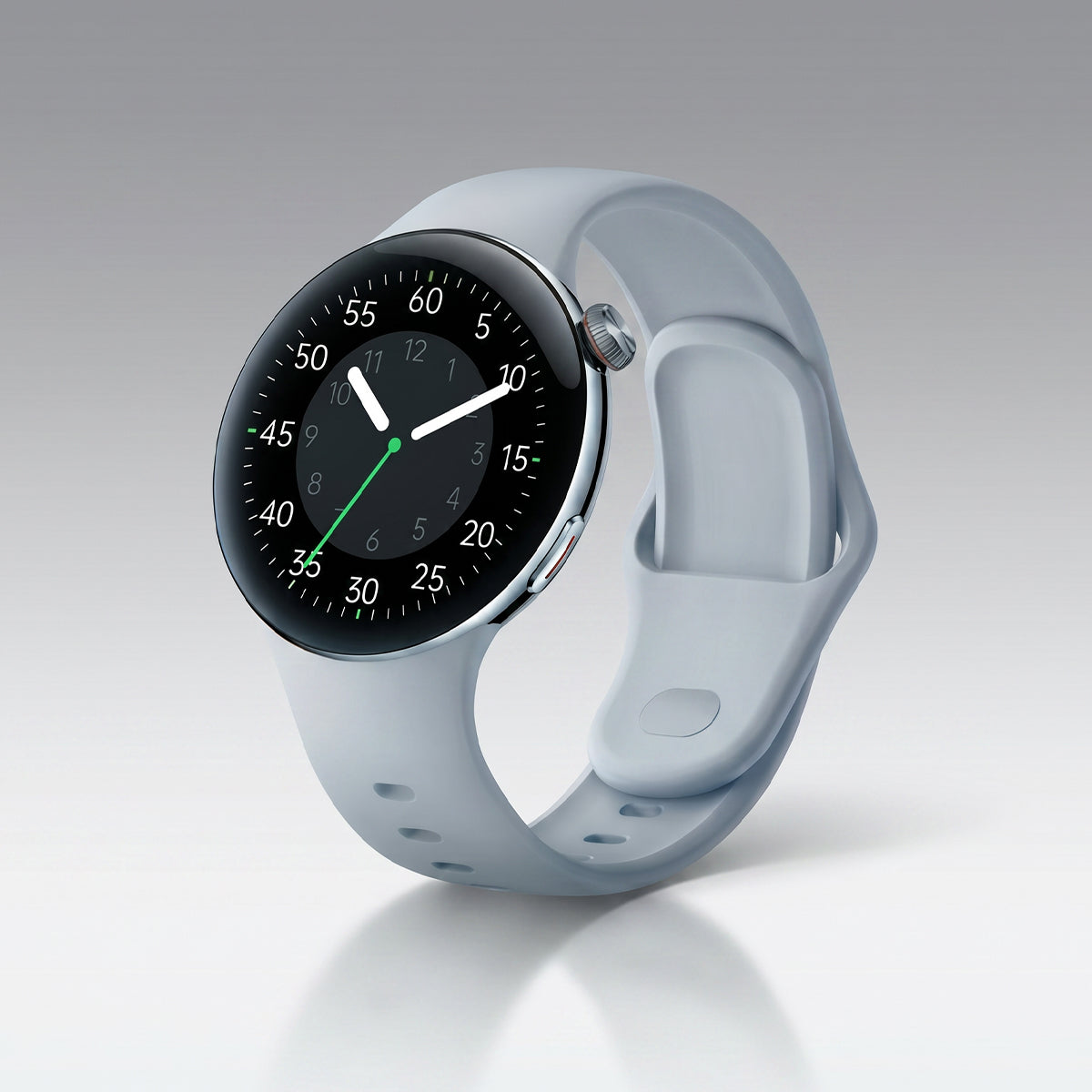







Your Aolon smartwatch is designed to be your ultimate workout companion. Whether you're running, cycling, swimming, or doing strength training, this guide will help you get the most out of your fitness tracking.
Getting Started
Before Your Workout
1. Wear your watch correctly
- Snug but comfortable
- About 2 finger widths above wrist bone
- Clean and dry wrist
2. Check battery level
- Ensure at least 50% for short workouts
- 80%+ for long sessions with GPS
3. Sync your watch
- Open Aolon Connect app
- Ensure recent sync
Starting a Workout
Method 1: Quick Start from Watch
1. Swipe right from the watch face
2. Scroll through workout types
3. Tap to select your workout
4. Wait for GPS (if needed)
5. Tap the play button to start
Method 2: Via App
1. Open **Aolon** app
2. Tap **Workouts** tab
3. Select workout type
4. Tap **Start** on your watch
5. Begin your session
Supported Workouts
Outdoor Activities
| Workout | GPS Required | Data Tracked |
| Running | Yes | Distance, pace, route |
| Cycling | Yes | Distance, speed, route |
| Hiking | Yes | Distance, elevation |
| Walking | Optional | Steps, distance |
| Golf | Yes | Score, distance |
Indoor Activities
| Workout | GPS | Data |
| Treadmill | No | Distance, pace |
| Rowing | No | Strokes, time |
| Elliptical | No | Calories, time |
| Strength | No | Reps, duration |
| Yoga | No | Duration, HR |
Swimming
- Pool length settings
- Stroke detection
- SWOLF efficiency score
- Lap counting
During Your Workout
Viewing Stats
Swipe left/right to see different screens:
| Screen | Shows |
| 1 | Time, Duration |
| 2 | Heart Rate, Zone |
| 3 | Distance, Pace |
| 4 | Calories, HR |
Quick Actions
Pause: Tap the pause button
Resume: Tap play button
End: Hold end button (3 seconds)
Heart Rate Zones
Understanding Zones
| Zone | % Max HR | Effort | Fat Burn |
| Zone 1 | 50-60% | Very light | 85% |
| Zone 2 | 60-70% | Light | 70% |
| Zone 3 | 70-80% | Moderate | 40% |
| Zone 4 | 80-90% | Hard | 15% |
| Zone 5 | 90-100% | Maximum | 5% |
Calculate your max HR: 220 - your age = estimated max heart rate
Using GPS
For Outdoor Workouts
1. Wait for signal
- Find open area
- Wait for "GPS Ready" message
- Typically 10-30 seconds
2. During workout
- Keep watch face up
- Don't cover with sleeve
3. After workout
- Auto-saves route
- Sync to app for full map
Tips for Better GPS
- Start in open area
- Avoid tall buildings
- Keep phone in same pocket
- Update firmware regularly
Post-Workout
Viewing Results
On your watch:
- Summary screen shows key stats
- Swipe for detailed breakdown
In the app:
1. Open Aolon Connect
2. Go to **Activity** tab
3. Select workout
4. View detailed metrics
Key Metrics Explained
| Metric | What It Means |
| Duration | Total workout time |
| Distance | Total traveled (GPS) |
| Avg Pace | Speed per mile/km |
| Calories | Estimated burn |
| Avg HR | Heart rate average |
| Max HR | Highest heart rate |
Analyzing Your Data
Weekly Review
Check these weekly:
- Total workout time
- Average heart rate
- Calories burned
- Consistency
Progress Tracking
In the app:
- View trends over time
- Compare workouts
- Set new goals
Troubleshooting
GPS Not Connecting
Solutions:
- Wait longer in open area
- Restart workout
- Check firmware updates
- Ensure phone Bluetooth is on
Heart Rate Seems Off
Check:
- Watch position on wrist
- Clean sensor area
- Tighten or loosen strap
- Wait 5 minutes after starting
Workout Not Saving
Try:
- Sync immediately after
- Check app connection
- Manual save from app
Pro Tips
✅ **Warm up**: Start slow, then increase intensity
✅ **Stay hydrated**: Track water intake
✅ **Cool down**: 5-minute easy pace
✅ **Rest**: Allow recovery time between intense sessions
✅ **Consistency**: Regular workouts build better data
What's Next?
Learn more:
- How to Set Fitness Goals
- Understanding Sleep Data
- Extending Battery Life During Workouts


发表评论
此站点受 hCaptcha 保护,并且 hCaptcha 隐私政策和服务条款适用。